Buttons and questions
At each step in a script, the user chooses how to continue. You can show short buttons, full questions, or both. The bot displays them in the exact order you set in the editor.
Two types of options
Each option in a step has a type. Choose the type based on the text length and what the user is looking for.
| Type | Appearance | Text length | Per step | When to use it |
|---|---|---|---|---|
| Button | A short, rounded button | Up to 25 characters | Up to 20 | For a short, clear topic, such as "Delivery times" |
| Question | A full-width row with an arrow | Up to 100 characters | Up to 20 | For a full question in the user's own words, such as "How do I cancel an order that has already shipped?" |
Buttons and questions are counted separately: each step can have up to 20 buttons and up to 20 questions. If you have more questions, create a new topic for them.
How to add a question
- Select a step in the script editor. Under "What the user can press", click "Add question". To add a short button, click "Add button".
- Write the question as the user would ask it. The counter below the field shows how many characters you have left.
- Choose what happens after the click, just as you would for a button: a new step, a jump to an existing step, a ticket form, a link, or an app screen.
- Use the arrows to reorder the options. Each item has a "Question" or "Button" label and a colored bar along the side to help you tell them apart.
- Check the preview, then publish.
How it looks in the chat
The bot keeps the order you chose. Consecutive questions appear in a single card, with a divider between them. A button between questions splits them into separate cards. Every question has the same height: two lines of text. Longer questions are truncated with an ellipsis. After the user clicks, the full text appears in their message bubble.
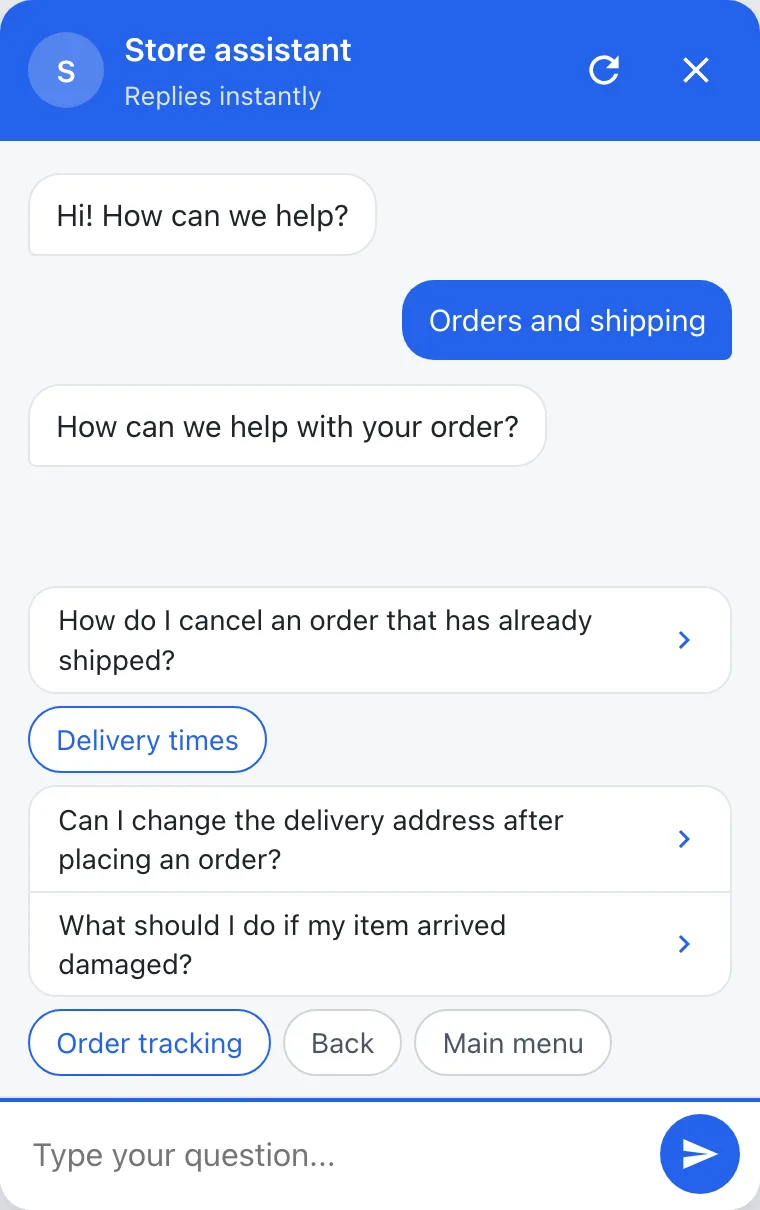
In Hebrew and Arabic, the arrow appears on the left and points left. In other languages, it appears on the right.
Steps with many options
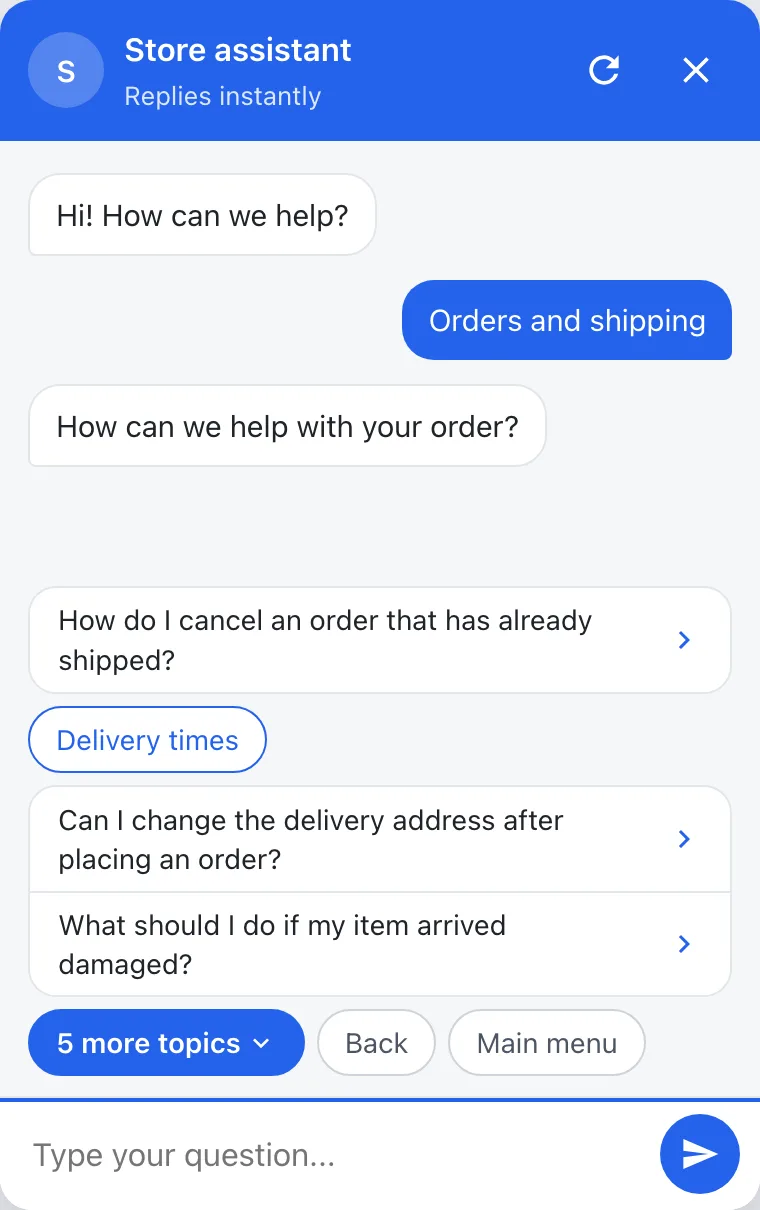
When a step has more than 5 options in total, including questions and buttons, the bot shows the first 4, followed by a highlighted "N more topics" button. "Back" and "Main menu" are always shown and do not count toward the total.
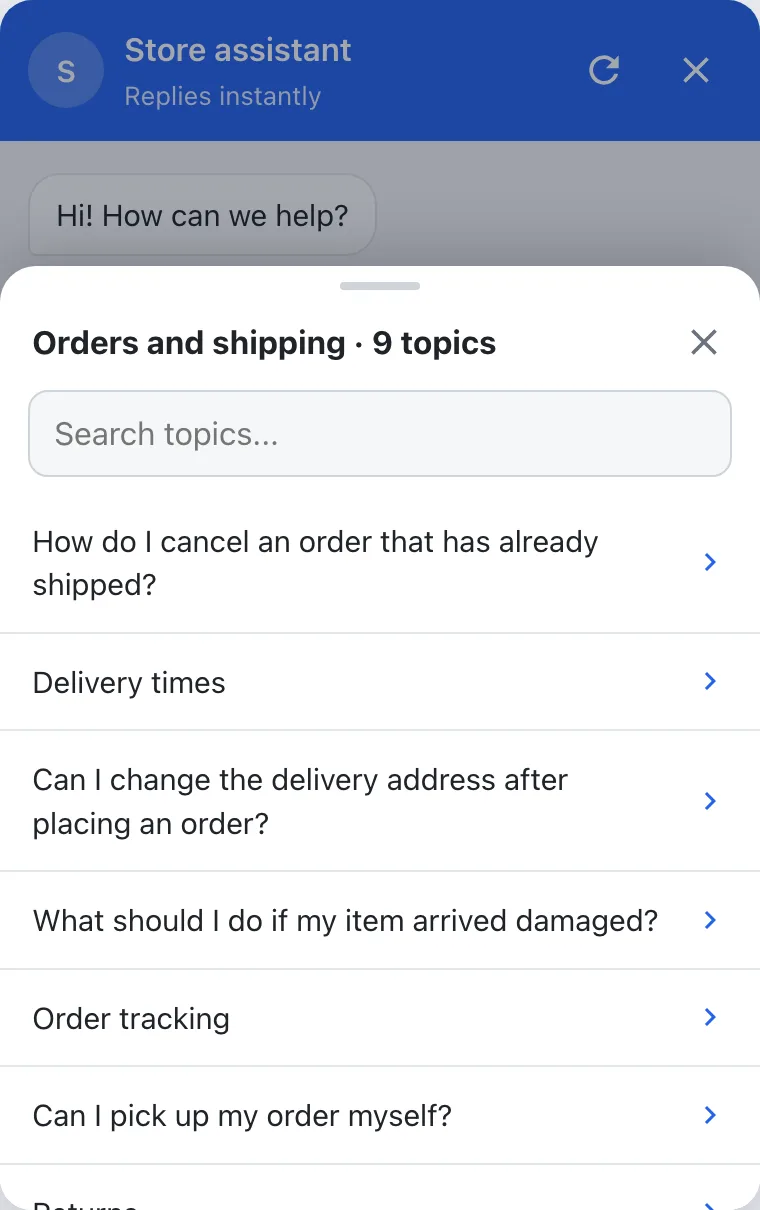
Clicking "N more topics" opens a list of all options in the same order, with a search field that filters them as you type. Selecting an option from the list continues the conversation just like clicking a button. When the conversation moves to a new step, the buttons return to the shortened view.
Back and Main menu
The "Back" and "Main menu" buttons appear at every step in the script. This includes the first step and the final step, where the bot asks whether your question was answered. Clicking "Back" returns to the previous step. At the first step, it returns to the main menu.
In apps
The website widget already displays questions. Until the next update, the app SDKs display them as regular buttons, so everything continues to work.